
Download XAMPP – Free One‑Click Apache, PHP & MySQL Stack
Overview & Key Features
XAMPP is a cross‑platform, one‑click installer that bundles the most popular web‑development components into a single, ready‑to‑run package. Designed for Windows, macOS, Linux and even Solaris, XAMPP delivers a complete development server in minutes, eliminating the need for manual configuration of Apache, PHP, MySQL, and a host of auxiliary tools. Whether you are a beginner learning PHP, a hobbyist building a personal website, or a professional developer testing complex applications, XAMPP provides a secure, isolated environment that mirrors a production server without the overhead of setting up each component individually.
- Apache HTTP Server – robust, widely‑used web server.
- MySQL / MariaDB – powerful relational database engine.
- PHP – latest versions with built‑in modules.
- phpMyAdmin – web‑based MySQL administration.
- FileZilla FTP Server – easy file transfers.
- Mercury Mail Server – full mail handling capabilities.
- Tomcat – JSP/Servlet container for Java web apps.
- Perl interpreter – scripting language support.
- Webalizer – basic web analytics out of the box.
- Control Panel – intuitive UI to start/stop services, view logs, and edit configuration files.
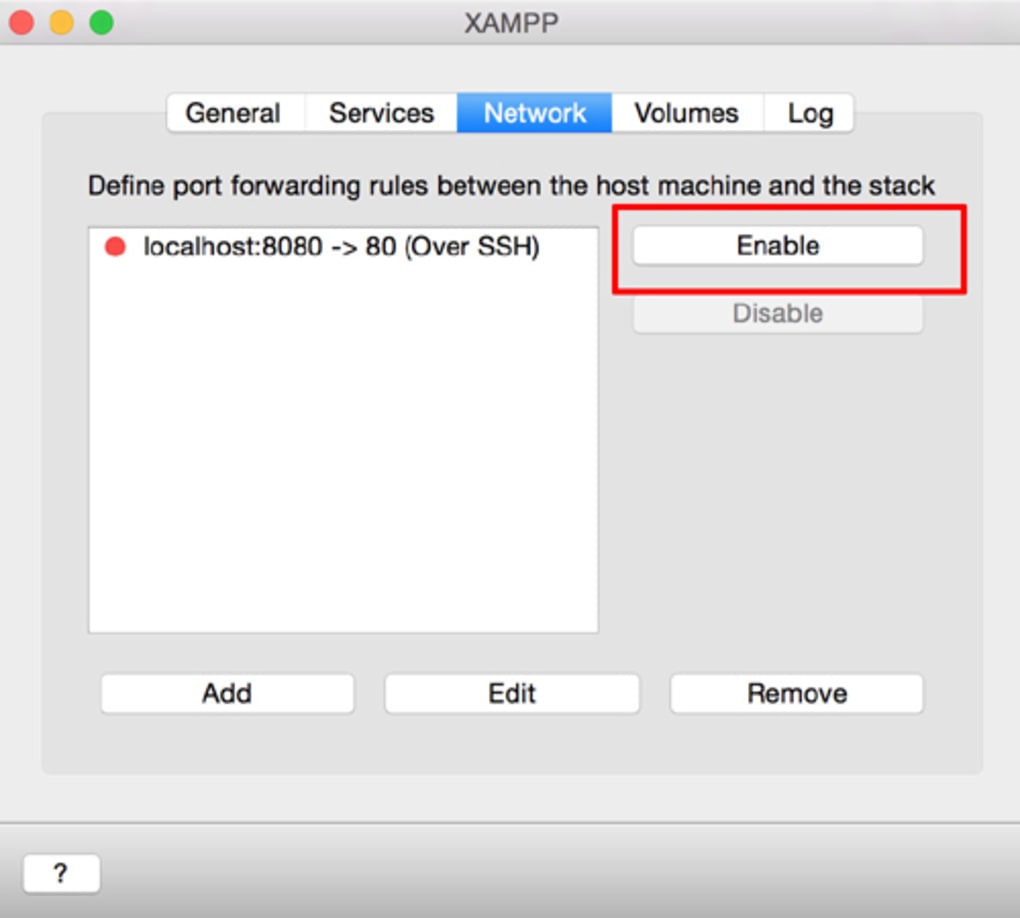
The integrated control panel is especially helpful for developers who need quick access to service status, port numbers, and error logs. XAMPP’s modular design also lets you enable or disable individual components, giving you the flexibility to tailor the stack to the exact needs of each project. In addition, a vibrant community provides continuous updates, security patches, and a wealth of tutorials, making XAMPP a reliable choice for both learning and production‑level testing.
Installation & First‑Run Guide
Installing XAMPP is intentionally straightforward: download the installer for your operating system, run it, and follow the wizard. The installer automatically extracts the necessary binaries and configures default ports (Apache on 80/443, MySQL on 3306). No manual editing of httpd.conf or my.cnf is required unless you want custom settings.
After the installation completes, launch the XAMPP Control Panel. You’ll see a list of modules with green “Start” buttons. Click “Start” next to Apache and MySQL to bring the server online. The panel also displays real‑time log output, helping you diagnose any startup issues instantly. If a port conflict occurs (common on Windows with Skype or other services), the panel offers a “Config” button to change the default ports.
To verify the installation, open a web browser and navigate to http://localhost. The XAMPP welcome page confirms that Apache is serving pages correctly. From there, you can access phpMyAdmin via http://localhost/phpmyadmin to manage databases, or drop your PHP files into the htdocs directory (or the configured document root) and view them instantly.
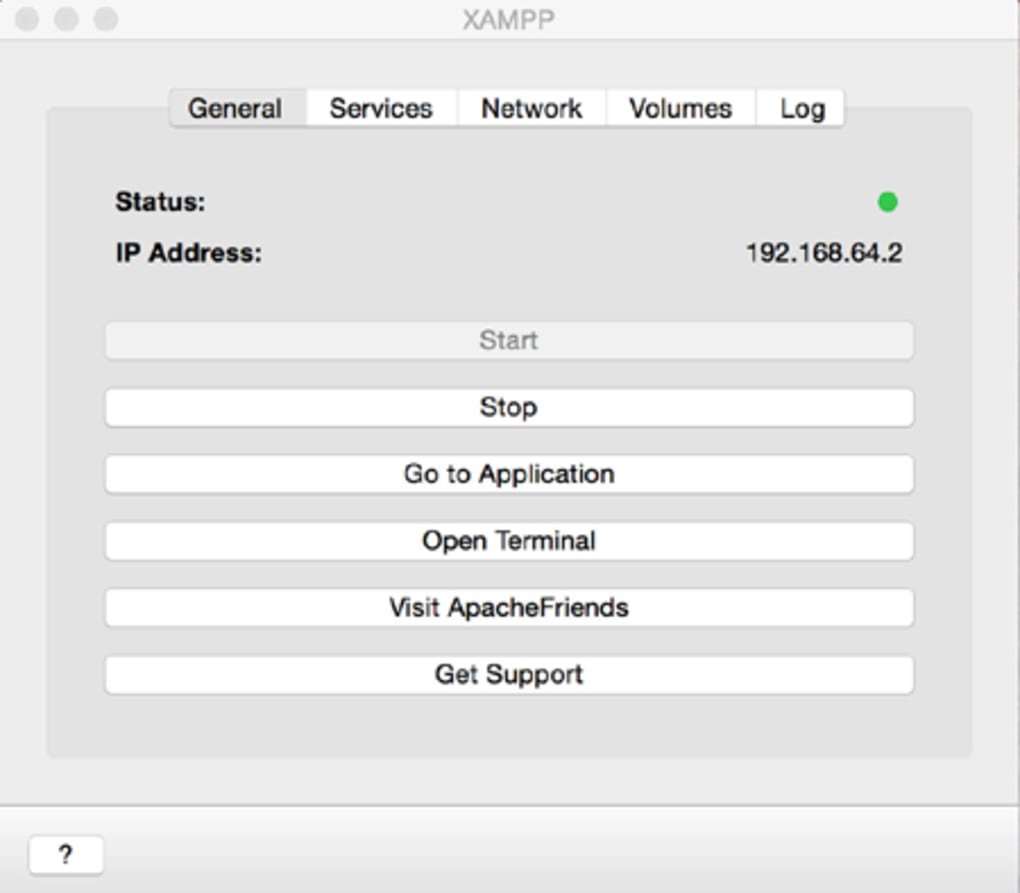
For day‑to‑day usage, the control panel remains your central hub. You can stop services when not needed to conserve resources, view and clear log files, or click the “Admin” button for quick access to phpMyAdmin, FileZilla, or the Tomcat manager. The installer also creates desktop shortcuts for easy launching, and the entire stack can be updated via the built‑in “XAMPP‑Setup” utility, ensuring you stay on the latest stable versions of each component.
Compatibility, System Requirements & Support
XAMPP is truly cross‑platform. Official binaries are available for:
- Windows 10, 8, 7 (both 32‑bit and 64‑bit)
- macOS 10.14 (Mojave) and later, including Apple Silicon (via Rosetta 2)
- Linux distributions – Debian, Ubuntu, Fedora, and CentOS
- Solaris 11 (legacy support)
The minimum hardware requirements are modest: a 1 GHz processor, 512 MB RAM, and at least 1 GB of free disk space. Because XAMPP bundles multiple services, a system with 2 GB RAM or more provides a smoother experience, especially when running heavy PHP scripts or multiple databases simultaneously.
Support for XAMPP comes from several channels. The official Apache Friends website hosts extensive documentation, downloadable binaries, and a changelog for each release. The community forum is active 24/7, with developers and users sharing troubleshooting tips, custom configuration snippets, and best‑practice guides. For urgent issues, the “Bug Tracker” allows you to file detailed reports that are reviewed by the core maintainers.
Additionally, XAMPP maintains a presence on GitHub, where the source code for the control panel and auxiliary scripts is publicly available. This transparency enables power users to audit the software for security, contribute patches, or even fork the project for specialized use‑cases. Regular social‑media updates on Twitter and Facebook keep the community informed about upcoming releases, security advisories, and new feature rollouts.
Pros & Cons
Pros
- One‑click installation saves time and eliminates configuration errors.
- All major web‑development components included out of the box.
- Cross‑platform support for Windows, macOS, Linux, and Solaris.
- Intuitive control panel with real‑time logs and service management.
- Large, active community providing free support and frequent updates.
- Free to use, with no hidden licensing costs.
- Modular architecture allows enabling/disabling services as needed.
Cons
- Default configuration is not hardened for production – additional security steps required.
- Port conflicts can arise on Windows machines with other server applications.
- Heavy on resources when all modules are active; may affect low‑spec PCs.
- Updates to individual components sometimes lag behind official releases.
- Limited official support for non‑English languages.
FAQ & Conclusion
Is XAMPP suitable for production servers?
XAMPP is primarily intended for development and testing. Its default configuration prioritizes ease of use over security, so you should apply additional hardening (firewall rules, strong passwords, disabling unnecessary services) before deploying to a live environment.
Can I install multiple versions of PHP within XAMPP?
Yes. XAMPP allows you to switch PHP versions via the control panel or by manually replacing the PHP folder and updating the configuration files. This is useful for testing compatibility across different PHP releases.
How do I secure phpMyAdmin in XAMPP?
Set a strong password for the MySQL root account, edit the config.inc.php file to require authentication, and consider restricting access to localhost via Apache’s .htaccess rules.
Does XAMPP include SSL/TLS support?
Yes. XAMPP ships with OpenSSL and a self‑signed certificate. You can enable HTTPS in the Apache configuration and replace the self‑signed certificate with one from a trusted CA for more realistic testing.
What is the best way to update XAMPP components?
Use the built‑in “XAMPP‑Setup” utility to download and install the latest stable versions. For individual components like PHP or MySQL, you can replace the relevant folders and adjust the configuration files, but the full installer ensures version compatibility across the stack.
In summary, XAMPP remains a cornerstone tool for anyone who needs a fast, reliable, and free development environment. Its one‑click setup, extensive feature set, and cross‑platform nature eliminate the usual headaches of configuring a web server from scratch. While it is not hardened for production out of the box, the flexibility to add security layers makes it adaptable for a wide range of scenarios. Whether you are learning PHP, testing a new CMS, or prototyping a web application, XAMPP provides the foundation you need to get up and running in minutes.
Ready to start building? Download XAMPP now and experience the convenience of a full‑featured web server on your local machine – completely free, secure, and constantly updated.







